Drem login help and account access
Open your existing Drem app and use the login method linked to your account. For a forgotten password, start from the login page; for a missing code or connection error, use the matching checks below.
Return to the account you already use
Start with the Drem app already installed on your phone. Look for its login screen and choose the method you used for that account. If you are still signed in on another device, keep that session available while you work out the access issue.
Check the phone number or email you enter, including any country code requested by the form. A second account created with another number is not a recovery method for the original account.
If you do not have the app, the download page explains Android access. This help page does not collect your login information and does not sign you in on your behalf.
If you have forgotten your password
Use the password-reset option on the app’s login page and follow the prompts shown there. The verification destination may depend on the details linked to your account. Check that you can still use that phone number or email before starting.
Do not send your current password, new password or verification code to someone offering to reset the account for you. Enter codes only in the recovery flow you opened yourself.
If the app will not accept the linked details, save the exact message. Do not keep guessing or register a different account to bypass it. Ask through the available support route which recovery step applies.
IF an OTP has not arrived
- Check the number or email shown by the form before requesting another code.
- Look in your SMS inbox, including filtered or blocked-message folders. If the form uses email, check that inbox and spam folder.
- Check mobile reception and your internet connection; they affect different parts of the process.
- Wait for any resend countdown displayed by the app before asking for a new code.
- Use the most recent code and read any expiry message shown on screen.
Repeated requests can make it harder to tell which message is current. If no code arrives, record the time and error without including the code itself in a screenshot.
If the screen is blank or the connection fails
Check whether other pages or apps can connect, then reopen Drem once. You can try another connection you normally use if the current network is unavailable. Keep a note of whether the issue occurs before or after the login form appears.
If the app specifically requires an update, follow Drem Update Help. Downloading a new file is not the first response to every login problem, and an older APK does not restore access to a linked number.
A phone number you can no longer receive messages on needs account support. Do not assume reinstalling will let you replace it.
Find Customer Center
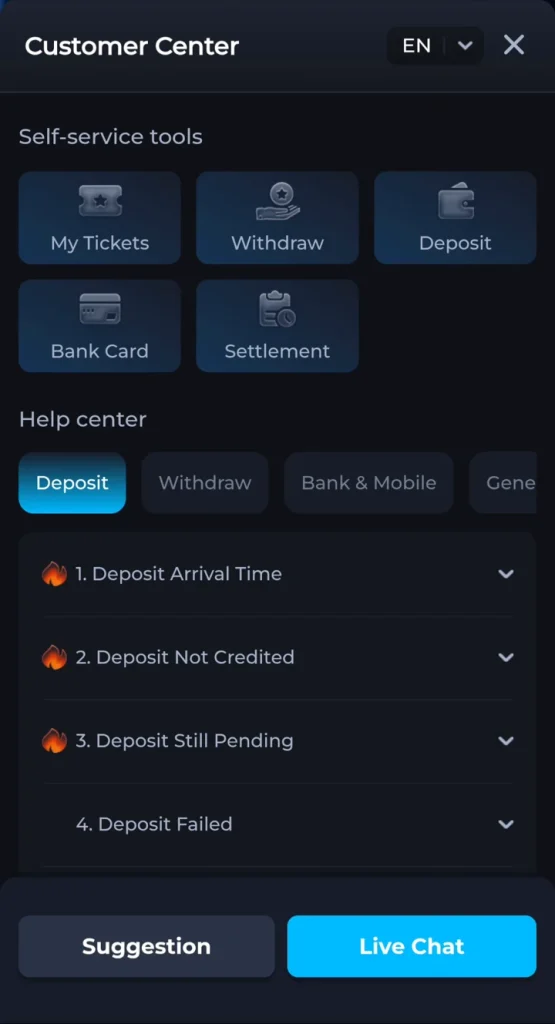
If you can still open an account session, use the account menu, select Contact CS, then open Customer Center. Live Chat and My Tickets provide routes to describe the problem and follow an existing case. When you cannot reach an account session, use our help page for the available next steps.
Your Questions, answered.
Do I need to download Drem again to log in?
If your installed app opens, use its login screen first. Reinstalling is not a password-reset method and may remove your saved session.
Where do I reset a forgotten password?
Start from the password-reset option on the Drem login page and follow the verification prompts for your linked account details.
What if I no longer have the linked phone number?
Use account support to ask about your recovery options. Do not assume that reinstalling or opening a new account will recover the original one.
Explore More Guides
Find the right help in come
1. How to update come apk on android
2. come apk not installing? Start with error
3. Come apk download guide